

Login and Access
Login & Facility Selection
EndZone Gear requires logging in through your company’s dedicated Shipedge subdomain and explicitly selecting a facility configured for Asset Control (EZ Gear).
Access Requirements
Section titled “Access Requirements”| Parameter | Details |
|---|---|
| Supported Platforms | Android (Google Play / Enterprise APK) · iOS (TestFlight / App Store) |
| Documented Version | v1.1.5 (Build 7) |
| Shipedge Subdomain | Your account’s server identifier (e.g., edge02) |
| Credentials | Company email and centralized Keycloak SSO password |
| Target Facility | Warehouse facility with active Control Activos / EZ Gear mode |
| Device Permissions | Camera access (for barcode scanning) and local storage |
Interactive Login Demo
Section titled “Interactive Login Demo”Step through the visual walkthrough below to see how to connect to your facility:
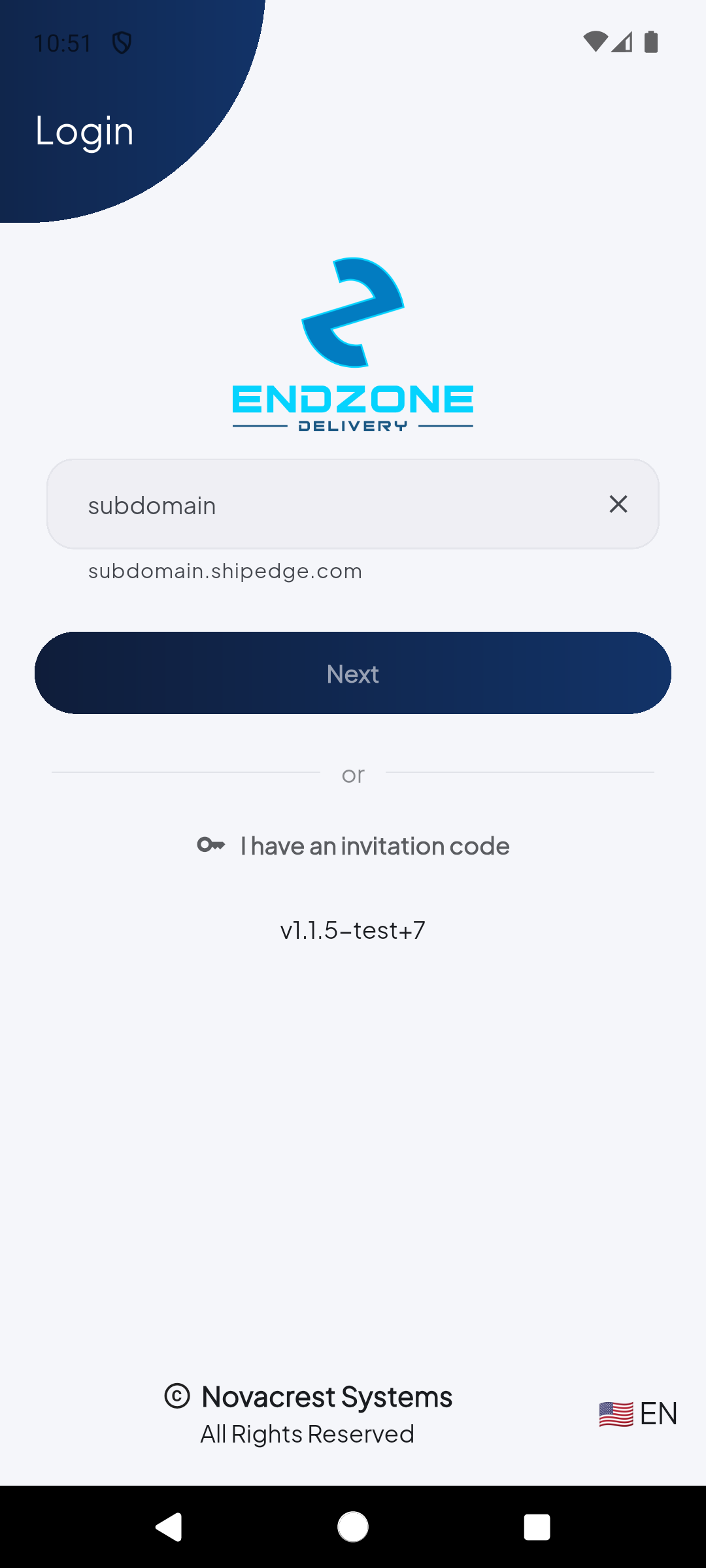
Enter your warehouse or Shipedge account subdomain (e.g., 'edge02'). Then tap 'Next' to route your connection to the correct server.
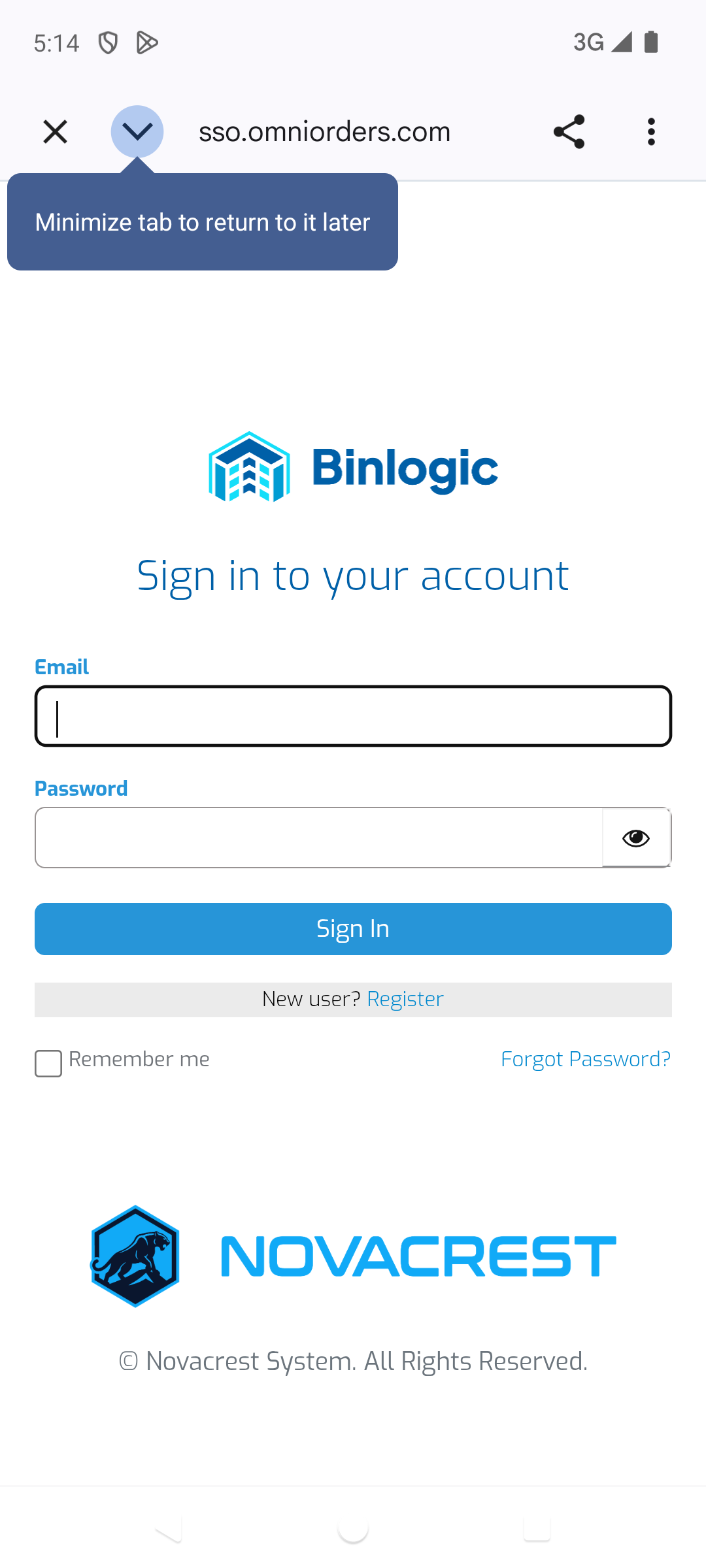
Type your username or email address and password on the secure Keycloak login screen. Tap 'Sign In' to verify your account.
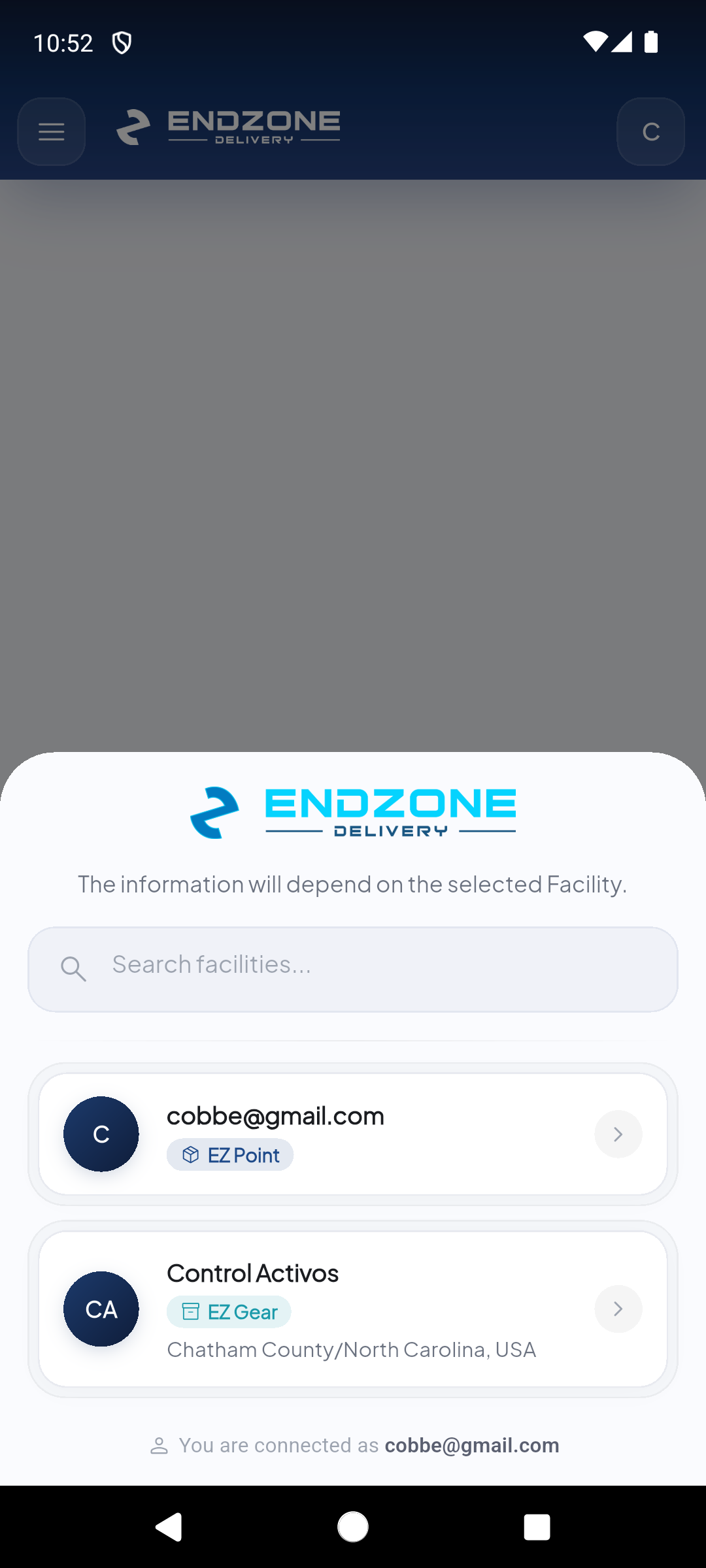
Select the facility operating under 'EZ Gear' mode (for example, 'Control Activos' in Chatham County). This loads the gear and asset management workspace.
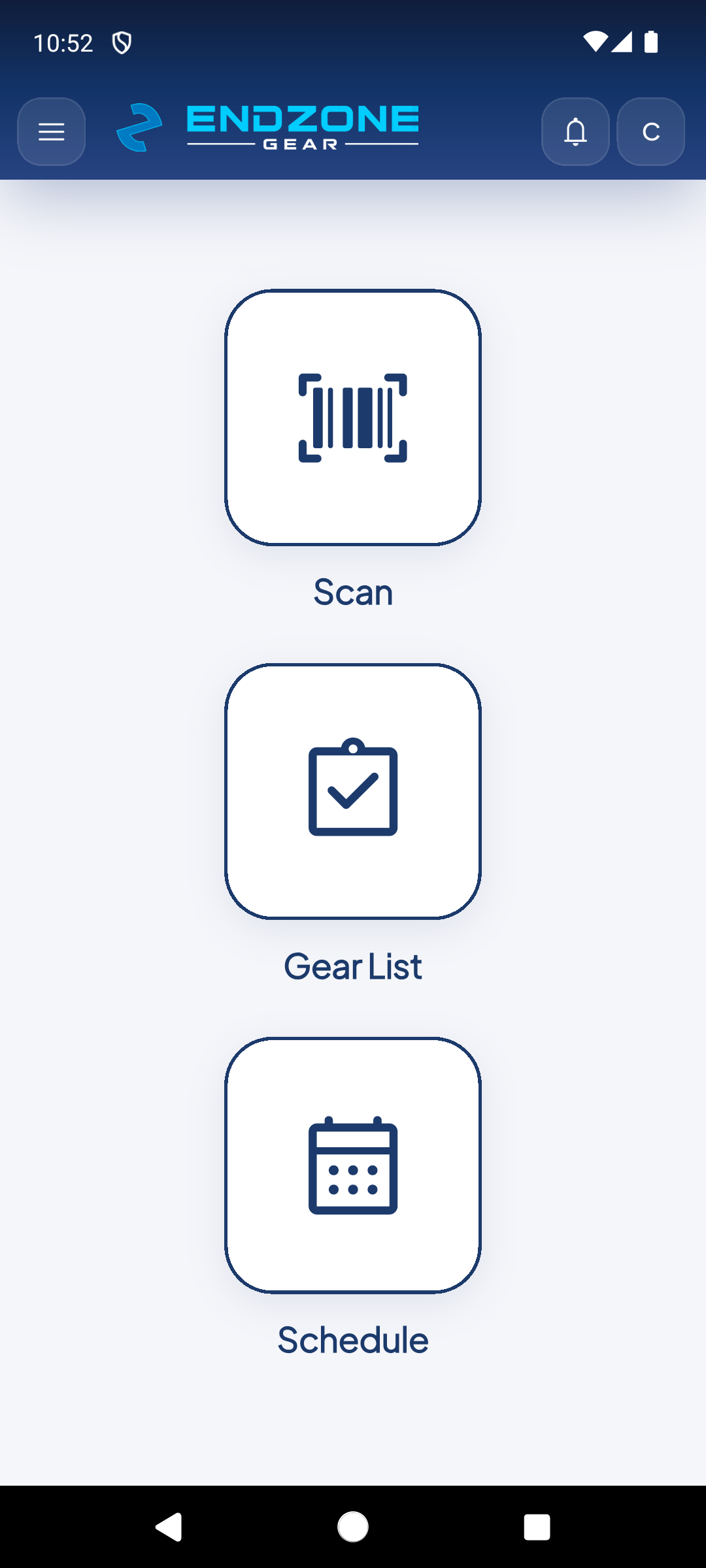
Success! Once the Asset Control facility is selected, you will enter the main EndZone Gear home screen featuring Scan, Gear List, and Schedule.
Demo completed!
Step-by-Step Instructions
Section titled “Step-by-Step Instructions”1. Connecting to your Subdomain
Section titled “1. Connecting to your Subdomain”When opening the app for the first time, you will be greeted by the Welcome to EndZone! screen. In the Shipedge account subdomain field, enter your assigned account identifier (for instance, edge02 will automatically resolve to edge02.shipedge.com). Tap Next.
2. Single Sign-On (SSO) Authentication
Section titled “2. Single Sign-On (SSO) Authentication”You will be forwarded to the secure Shipedge Keycloak portal:
- Enter your corporate email in the Username or email field.
- Enter your password in the Password field.
- Tap the blue Sign In button. If you have forgotten your password, tap Forgot Password? to request a password reset email.
3. Choosing Facility: Point Mode vs Gear Mode
Section titled “3. Choosing Facility: Point Mode vs Gear Mode”A single account may belong to multiple distribution centers or operational profiles:
- EZ Point: Last-mile parcel delivery mode (receiving manifests, route dispatch, customer pickup).
- EZ Gear (
Control Activos): Specialized mode for tracking technical assets, industrial equipment, preventive maintenance schedules, and slot relocations.
Facility Switcher
Make sure to select the facility tile marked with the EZ Gear badge (e.g., Control Activos). If you accidentally enter an EZ Point facility, you can switch facilities at any time using the side drawer menu.