



Onboarding Tour
Guided Welcome Tour
When logging in for the first time, or whenever you tap Replay Tour from the Settings screen, EndZone launches an interactive 6-step slide tour summarizing the platform’s core operational capabilities.
Interactive Onboarding Demo
Section titled “Interactive Onboarding Demo”Navigate through all 6 tutorial slides:
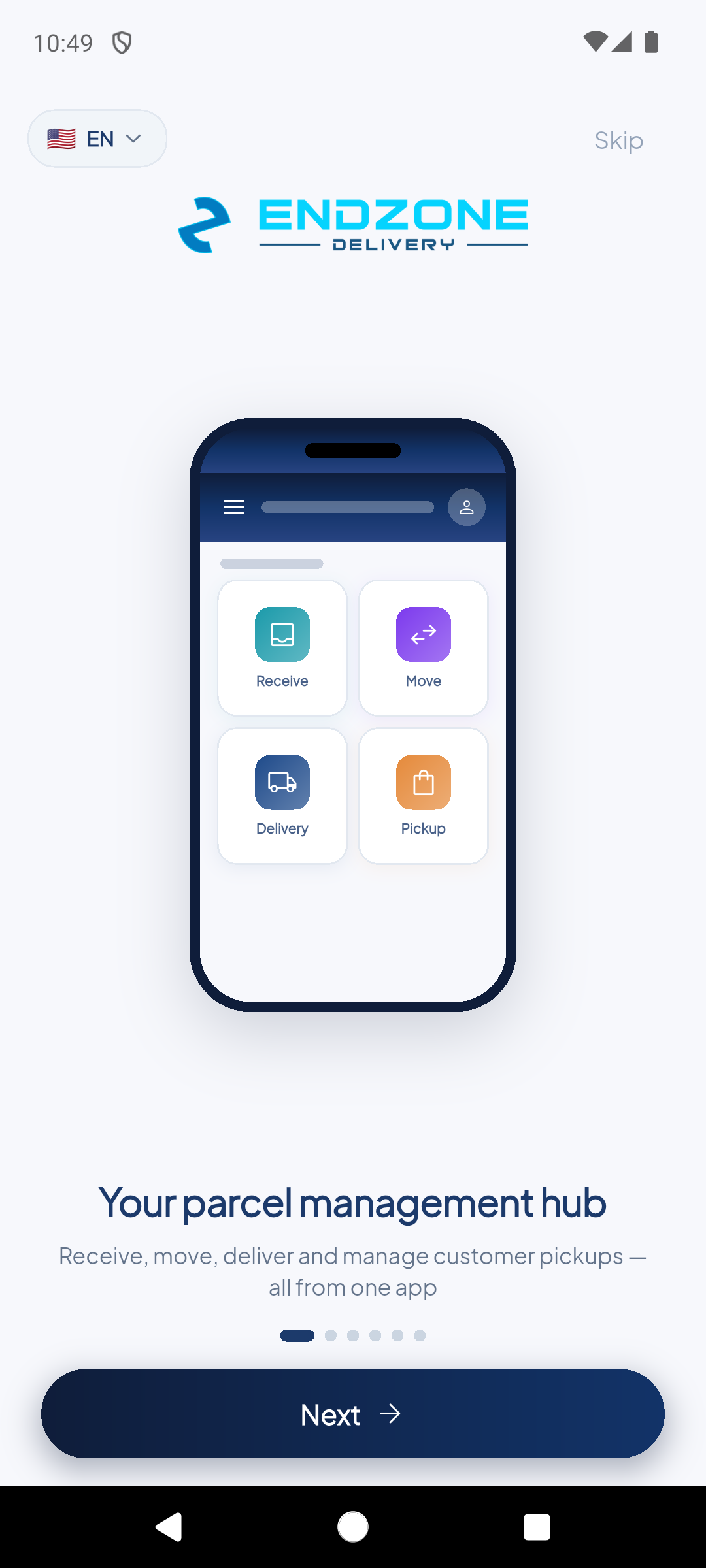
Initial introduction to the mobile platform highlighting the unified operational flow for warehouse management. Tap 'Next' to continue.
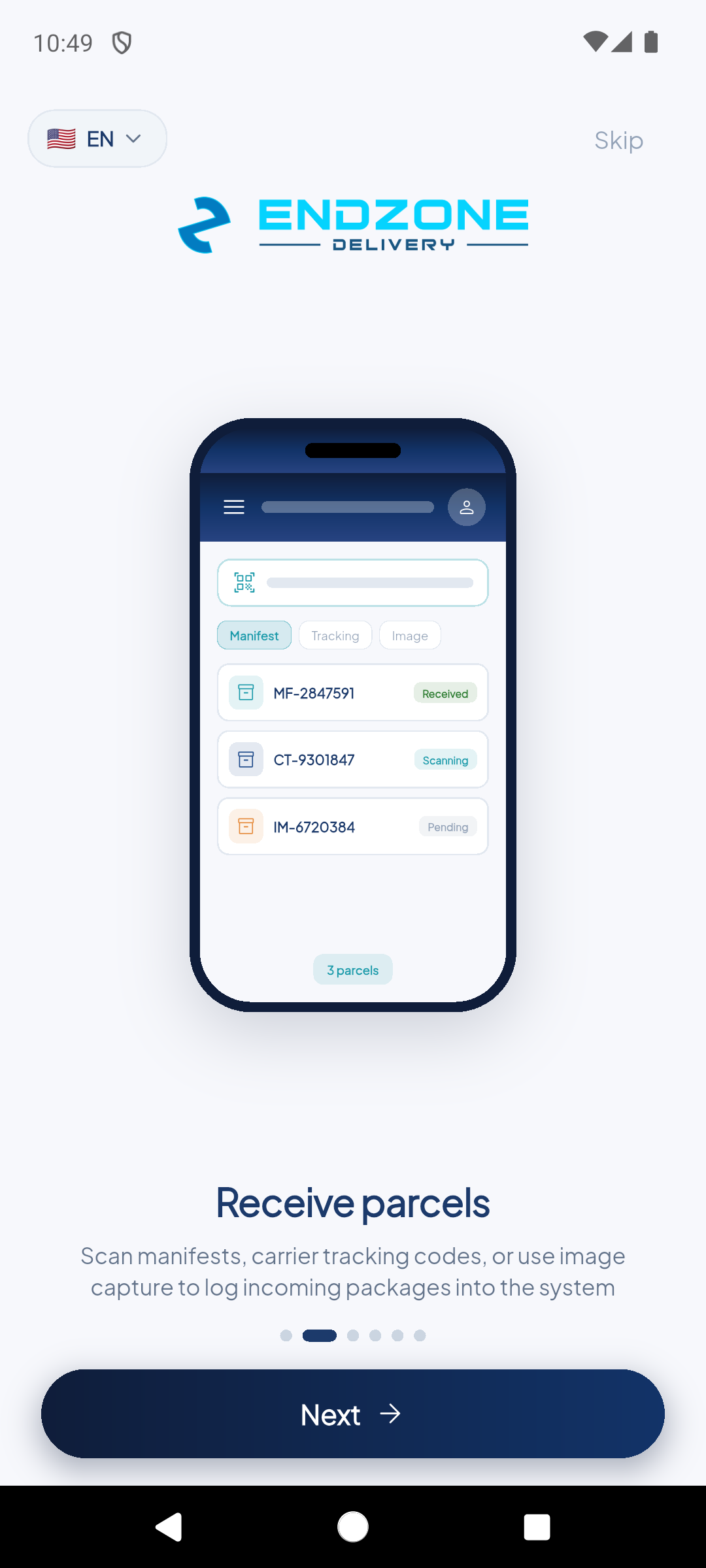
Introduces barcode scanning workflows to intake items and link them with manifests or unique tracking identifiers.
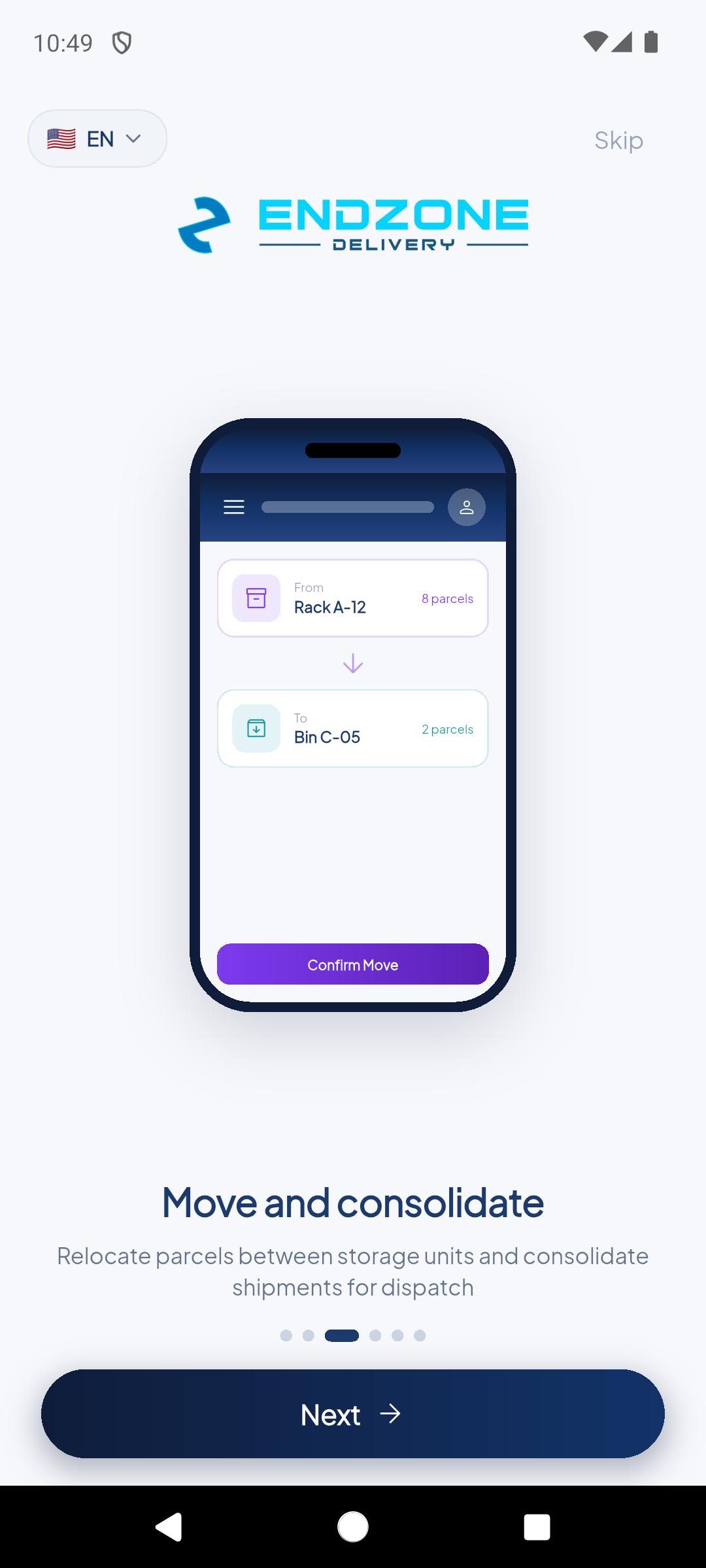
Walks through relocating items and assets across storage slots, aisles, and technical rooms inside the facility.
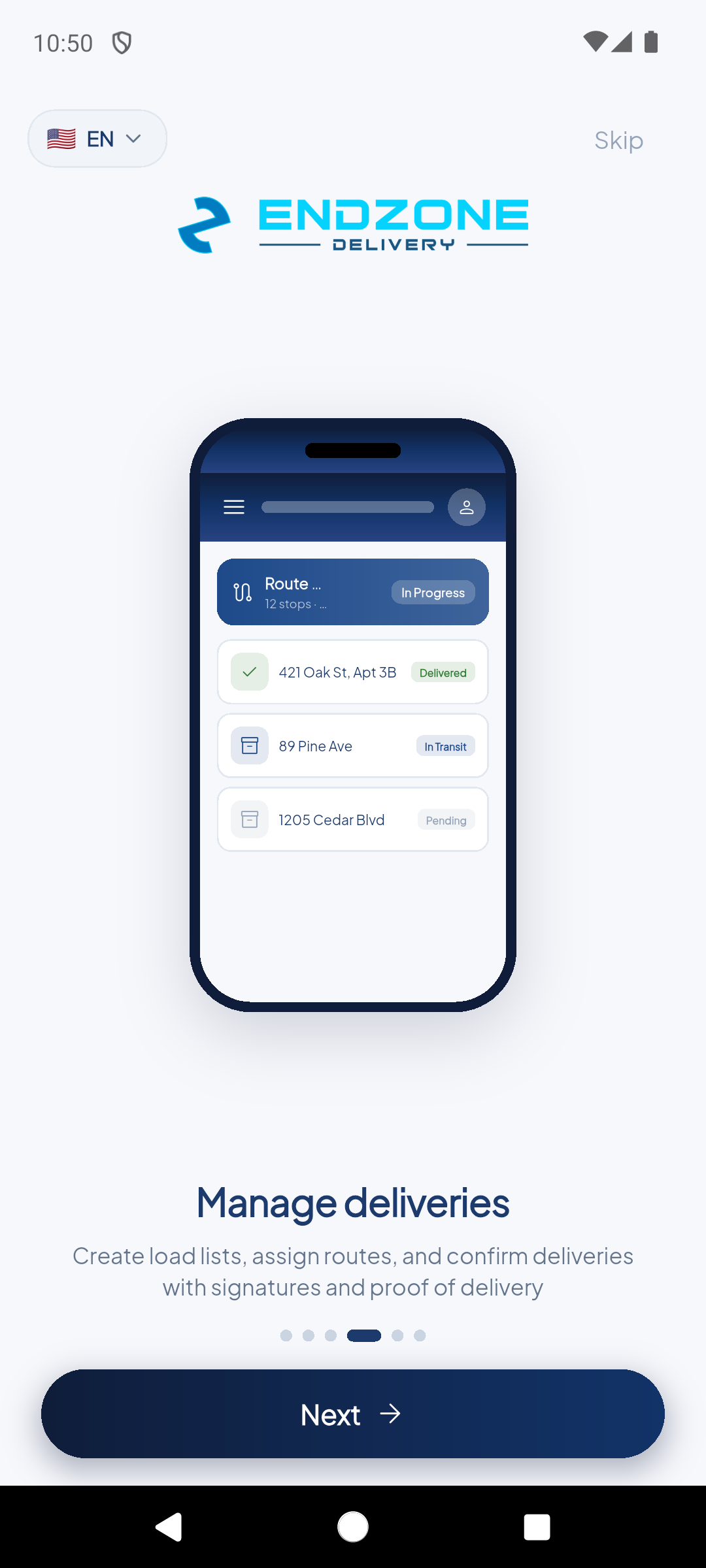
Explains dispatch management, task routing, and assigning gear for out-of-facility work runs.
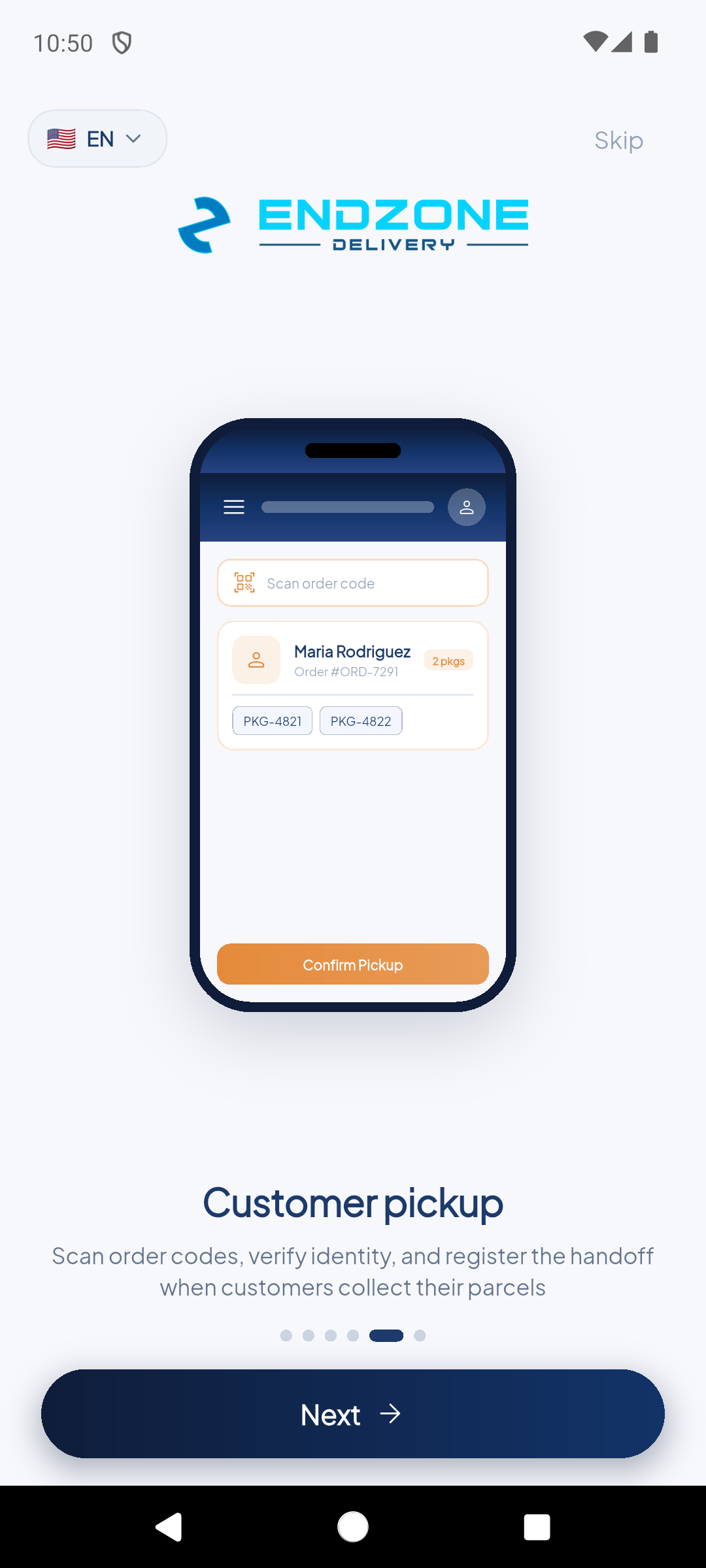
Demonstrates in-person physical handover and verification for technician checkouts or customer counter pickups.
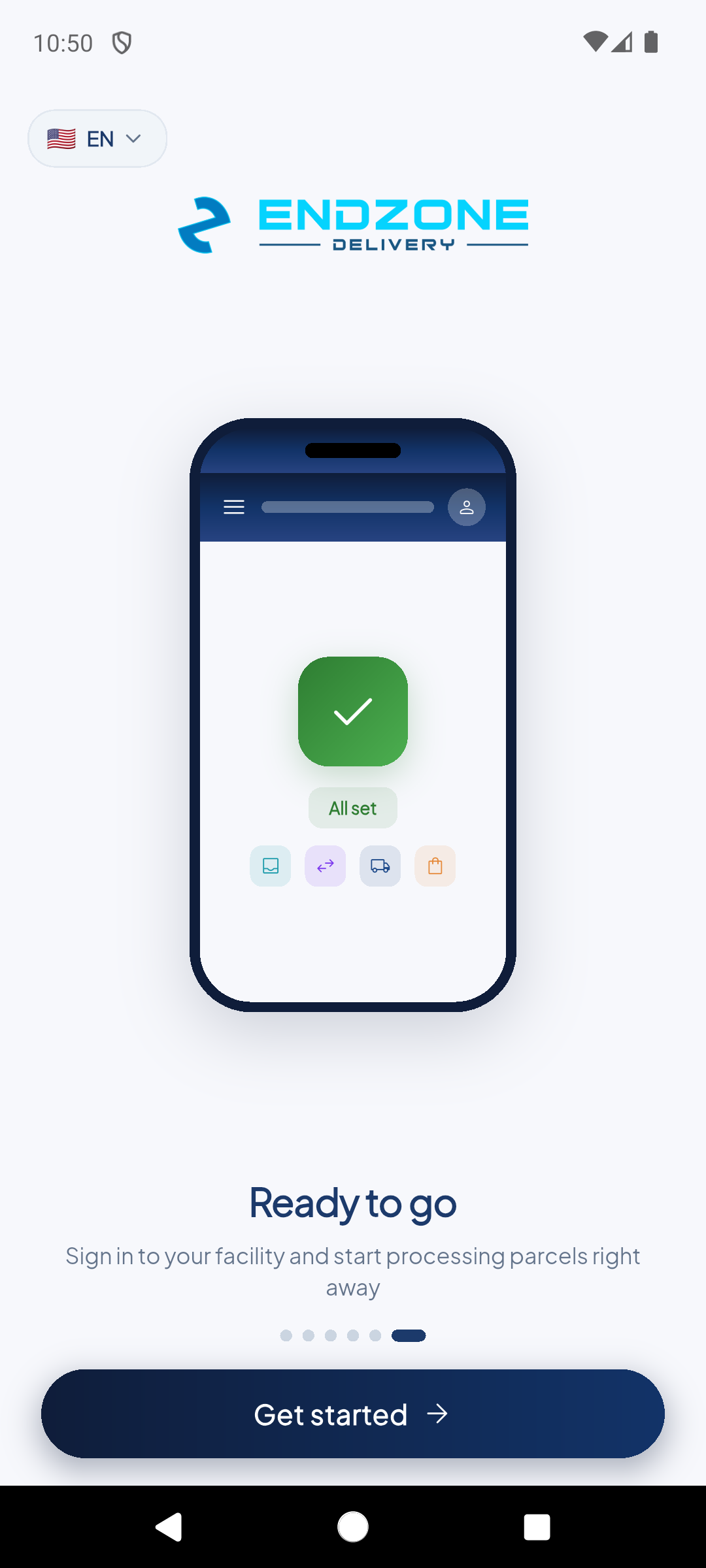
Final slide. Tap the 'Get Started' button to grant necessary camera permissions and jump straight into the application dashboard.
Demo completed!
Onboarding Steps Summary
Section titled “Onboarding Steps Summary”| Step | Screen | Operational Focus |
|---|---|---|
| 1 | Welcome to EndZone | Platform overview and initial account preference setup |
| 2 | Receive | Fast intake using optical barcode scanning |
| 3 | Move | Item transfer and physical storage slot assignment |
| 4 | Deliveries | Dispatch control and equipment assignment for work shifts |
| 5 | Customer Pickup | Digital verification and checkout at the service desk |
| 6 | Ready to go | Final setup checklist and hardware permission activation |
Step 1 — Welcome to EndZone
Section titled “Step 1 — Welcome to EndZone”Welcome screen introducing the mobile platform and its unified value proposition for warehouse operations management. Displays available modules with visual icons.
Step 2 — Receive
Section titled “Step 2 — Receive”Explains the item scanning and intake workflow, linking items to manifests or unique tracking codes. Introduces the concept of fast intake through barcode reading.
Step 3 — Move
Section titled “Step 3 — Move”Details the physical relocation process of items between shelves, slots, and technical locations within the warehouse. Illustrates inventory transfer and storage slot assignment.
Step 4 — Deliveries
Section titled “Step 4 — Deliveries”Explains how dispatches, outbound routes, and equipment assignments for field operations are managed. Shows delivery control and material allocation for technical shifts.
Step 5 — Customer Pickup
Section titled “Step 5 — Customer Pickup”Demonstrates in-person verification for direct deliveries or pickups by authorized users or technicians. Presents digital signature validation and checkout at the service desk.
Step 6 — Ready to go!
Section titled “Step 6 — Ready to go!”Final tutorial screen. Confirms the operator is ready to use the app. Tap the Get Started button to proceed directly to the main dashboard.