


Home Screen and Navigation
Main Screen & Navigation Hub
The EndZone Gear home screen serves as the centralized command center, providing direct access to the three core pillars of asset operations: Scan, Gear List, and Schedule.
Interactive Navigation Demo
Section titled “Interactive Navigation Demo”Explore the main home screen, the side drawer, and notifications:
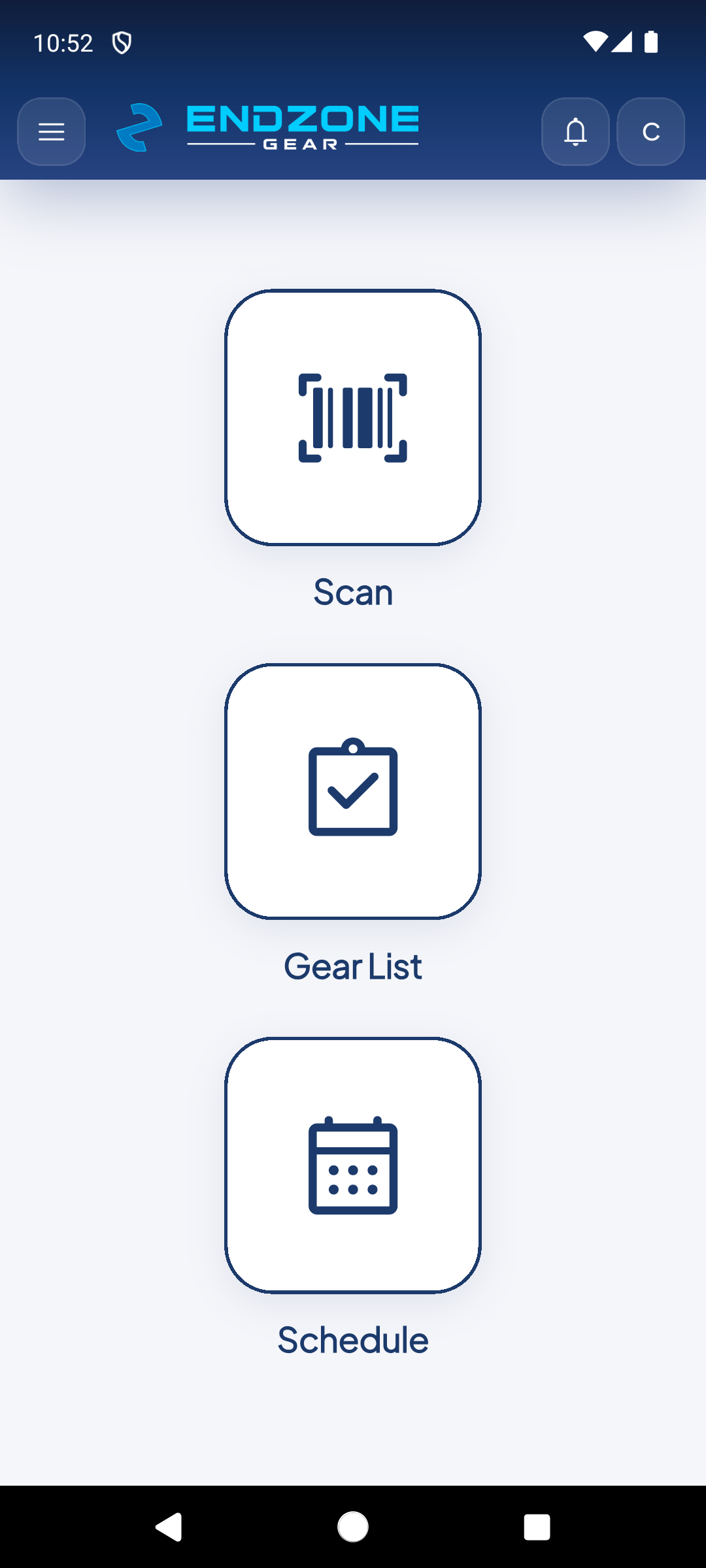
Displays the 3 core operational cards: Scan, Gear List, and Schedule. The top header houses the side drawer toggle (left), notification bell, and user avatar (right).
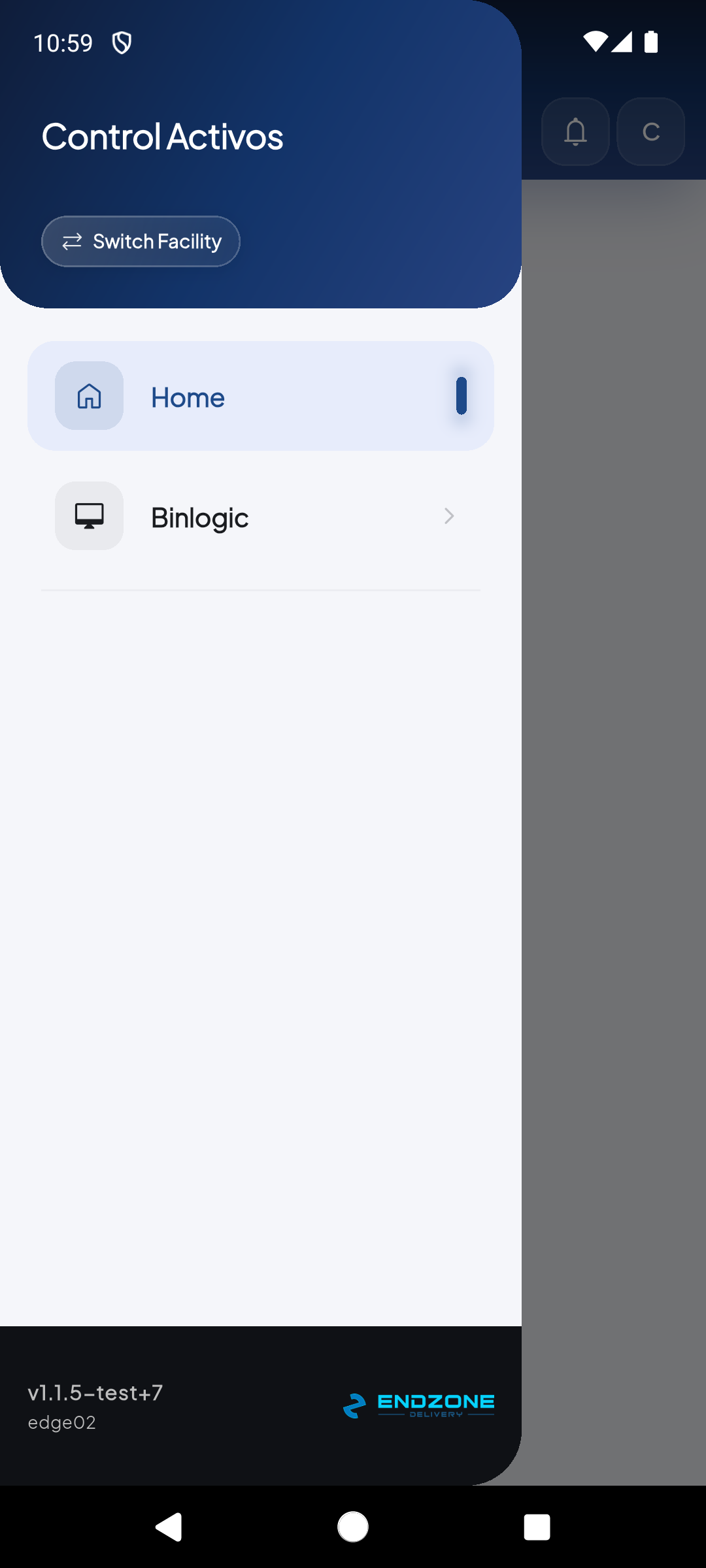
Quickly jump across modules, verify your active facility ('Control Activos'), switch to another DC, or open the Settings screen.
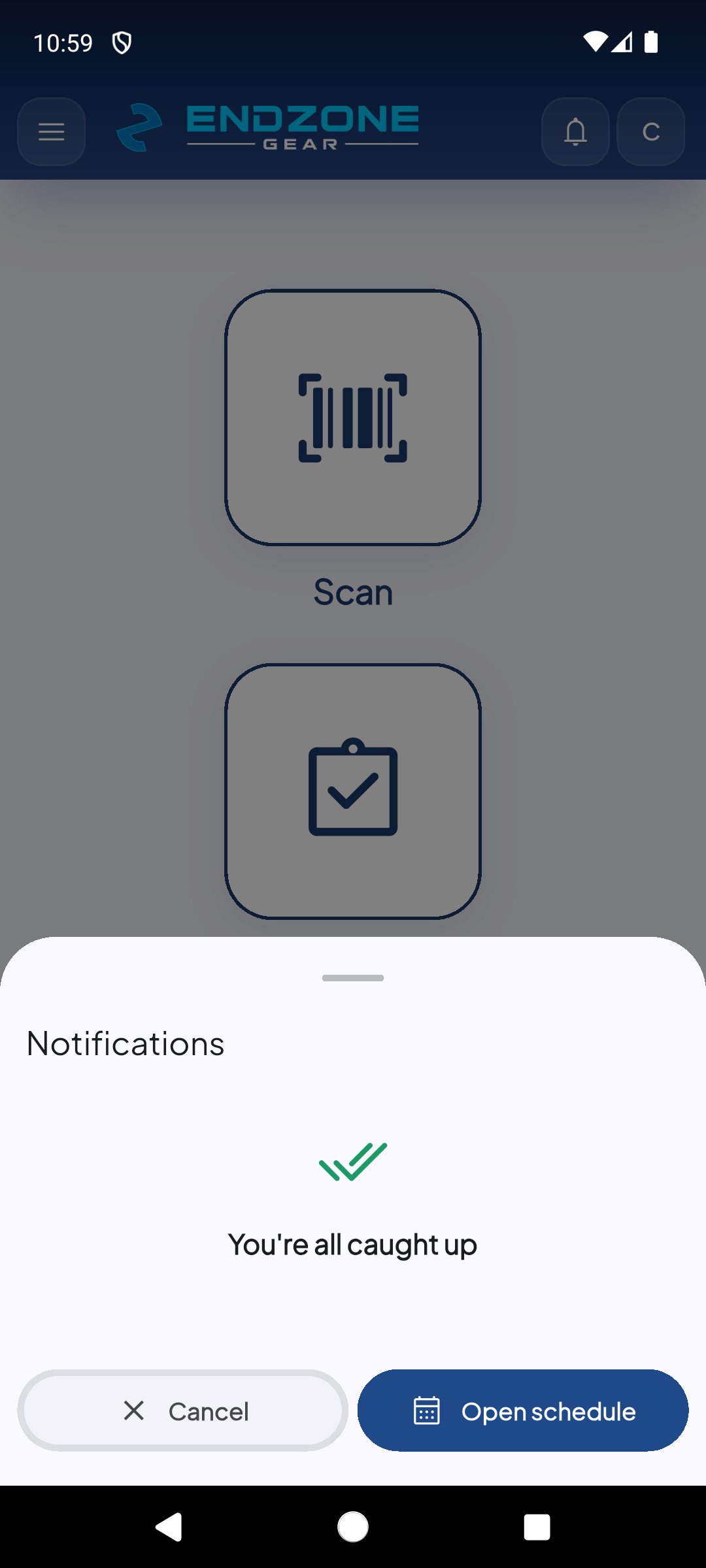
Tapping the bell icon with the red indicator opens the bottom sheet displaying alerts for upcoming maintenance, gear transfers, and system announcements.
Demo completed!
Top App Bar Elements
Section titled “Top App Bar Elements”The persistent top header bar contains the following controls:
- Hamburger Menu Button (☰): Slides open the left navigation drawer.
- App Branding: Displays the ENDZONE GEAR header confirming the asset management profile is active.
- Notification Bell (🔔): Features a red notification badge whenever unread alerts or scheduled task reminders require attention.
- User Avatar: Displays the initial of the logged-in operator (e.g.,
Cfor cobbe). Tapping the avatar navigates directly to Settings and Profile.
Central Module Cards
Section titled “Central Module Cards”The main scrollable screen features three interactive cards:
| Module | Icon | Operational Purpose | Quick Action |
|---|---|---|---|
| Scan | 📷 Barcode | Launches the camera viewfinder to instantly scan barcodes or QR codes on any tool, machine, or asset. | Immediate barcode detection and redirection to the asset specification sheet. |
| Gear List | 📦 Box | Displays the complete asset inventory registered in the active facility, with live search and location filters. | View asset details, edit tags/photos, relocate to slots, and export to CSV. |
| Schedule | 📅 Calendar | Opens the maintenance calendar and task manager for facility equipment. | Create new tasks, set recurring schedules, and attach linked gear. |
Side Drawer Menu
Section titled “Side Drawer Menu”Swiping from the left screen edge or tapping the hamburger button opens the navigation drawer with direct links:
- EndZone Gear Header: Active module badge.
- Scan: Quick launch for the barcode camera.
- Gear List: Direct link to the asset catalog.
- Schedule: Direct link to the task calendar.
- Facility Switcher: Displays the active distribution center (
Control Activos) and allows switching facilities with a single tap. - Settings: Direct access to user profile, language options, and app version.
Notification Center
Section titled “Notification Center”Tapping the bell icon (🔔) on the top bar opens a bottom sheet with system alerts, task reminders, and asset movement notifications.