



Schedule & Tasks
Task Scheduling & Maintenance Calendar
The Schedule module empowers warehouse managers and technicians to plan preventive maintenance, routine safety inspections, tool checkouts for work shifts, and recurring servicing tasks linked directly to warehouse assets.
Interactive Schedule Demo
Section titled “Interactive Schedule Demo”Explore the calendar view, task list, and task creation workflow:
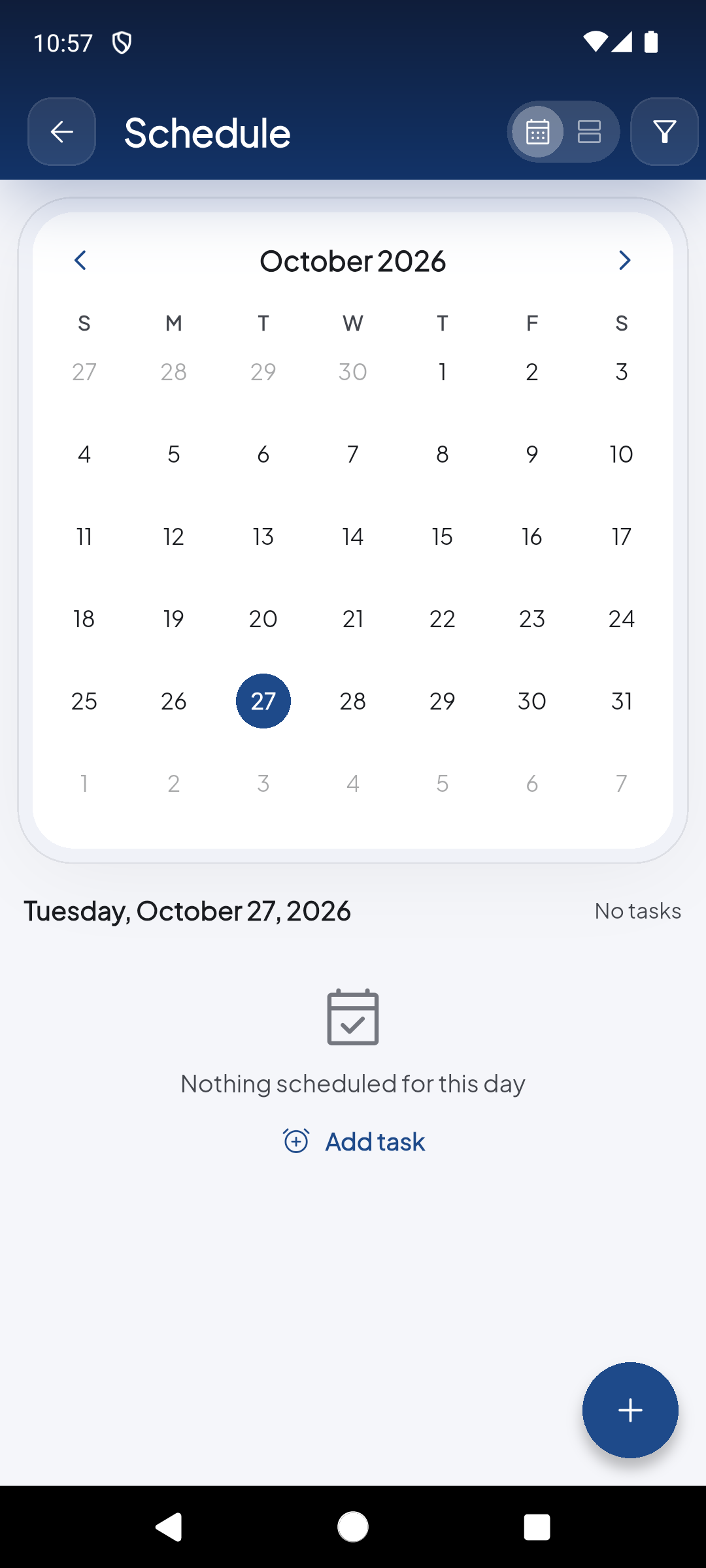
Displays the monthly calendar. Days with scheduled tasks show a colored dot indicator. Tapping any date reveals the scheduled agenda for that specific day.
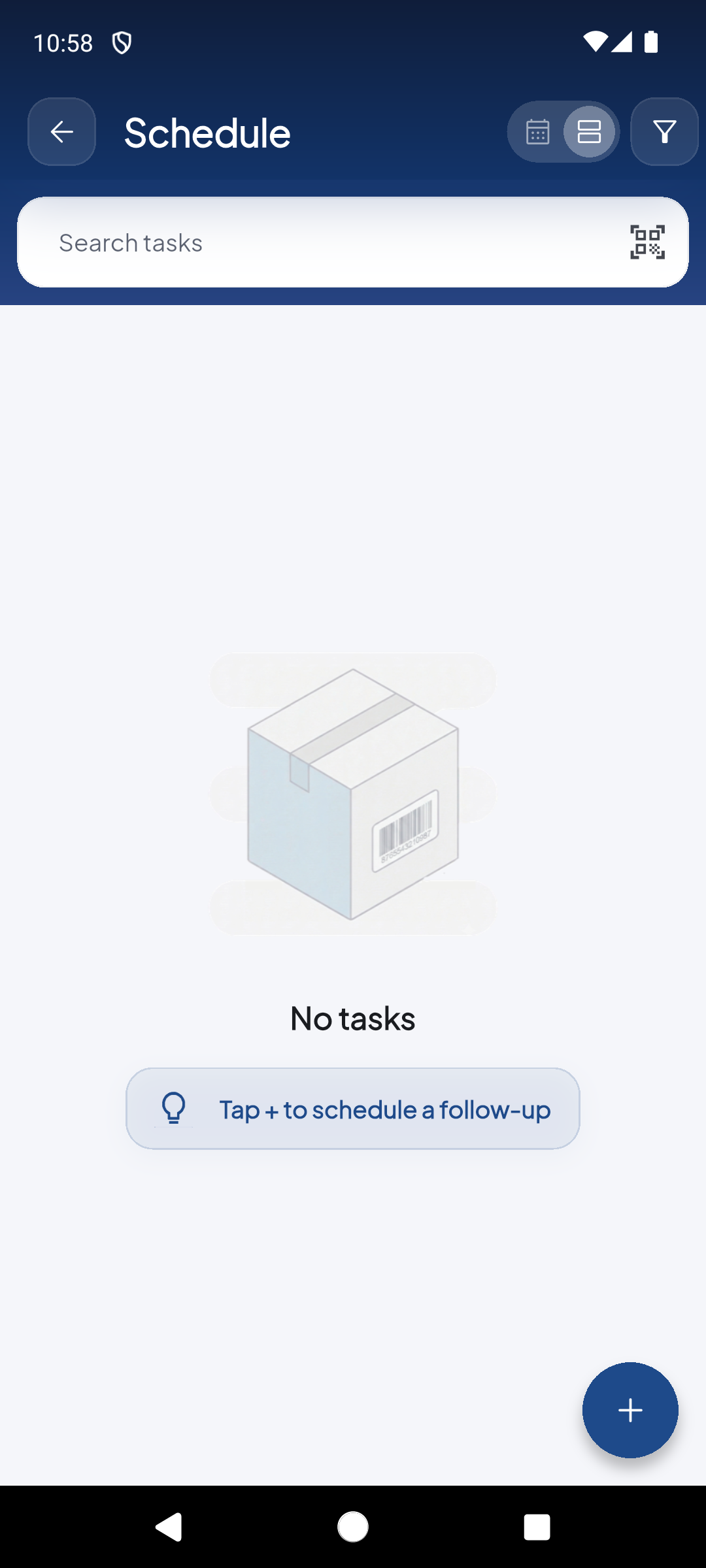
Switch to chronological list mode to browse all tasks sorted by date and time, complete with status tags and linked gear badges.
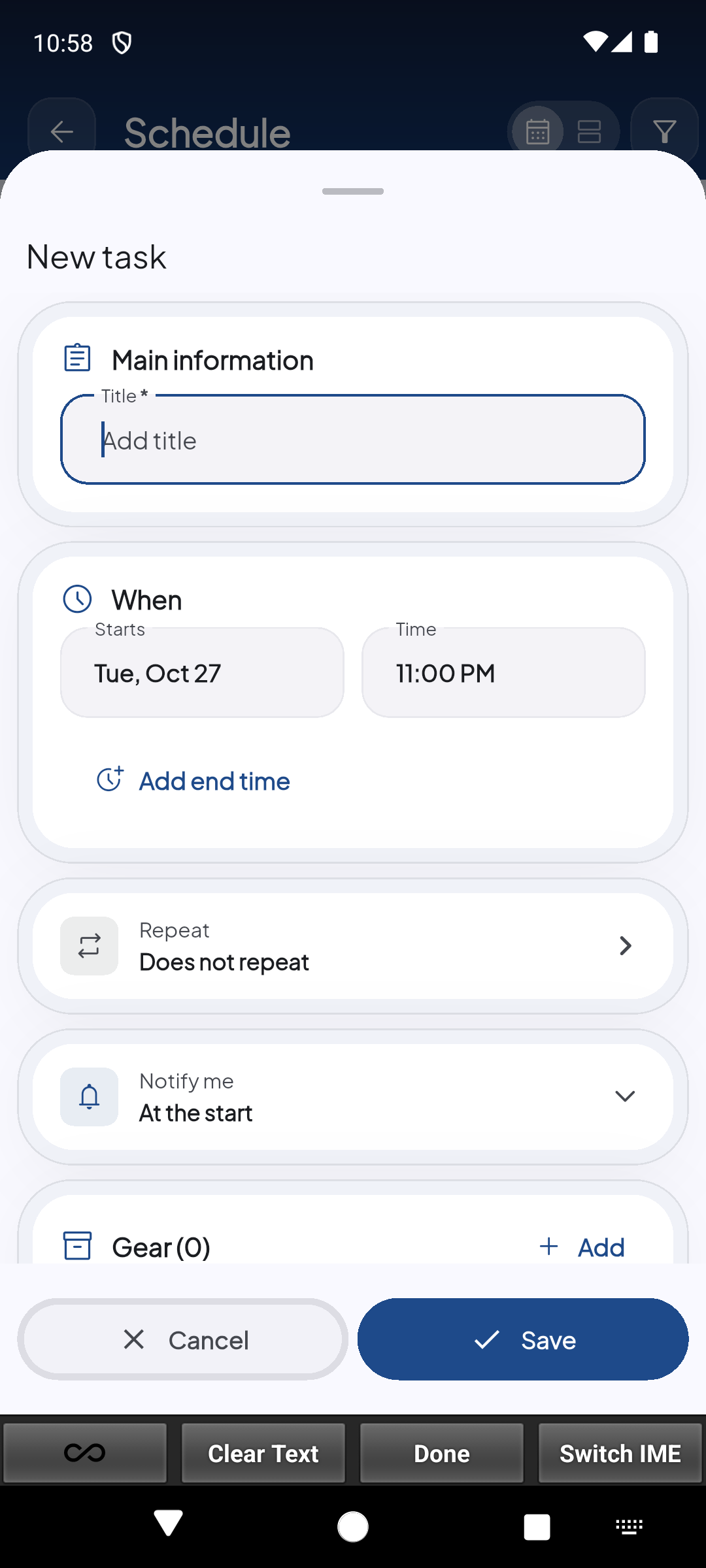
Configure a new activity: enter title, start date, start/end time, repetition frequency, notification alert, and attach target assets ('Linked Gear').
Demo completed!
Available Views in Schedule
Section titled “Available Views in Schedule”Switch between two view modes at the top of the screen:
1. Calendar View
Section titled “1. Calendar View”- Month Navigation: Use the
<and>arrows to browse months. - Activity Indicators: Days with scheduled tasks display a colored indicator dot below the calendar day number.
- Daily Agenda: Selecting any day populates the lower half of the screen with all events, time slots, and status indicators scheduled for that date.
2. List View
Section titled “2. List View”- Keyword Search: Quick text filter to locate tasks by title, assignee, or equipment name.
- Status Filter Tabs: Filter between pending (Upcoming), in-progress, or finished (Completed) tasks.
- Summary Cards: Compact preview showing title, schedule interval, notification reminder, and number of linked assets.
Creating a New Task (New Task)
Section titled “Creating a New Task (New Task)”To schedule an activity, tap the floating + button or the Add Task button on an asset’s detail sheet. The form includes three key sections:
1. General Information
Section titled “1. General Information”- Title: Descriptive name for the task (e.g., Forklift Monthly Safety Inspection or Scanner Gun #4 Firmware Update).
2. Time & Repetition (When)
Section titled “2. Time & Repetition (When)”- Starts: Calendar start date.
- Time: Exact start time.
- End time: Estimated completion time.
- Repeat: Recurrence frequency rule:
- Never (one-time event).
- Daily.
- Weekly.
- Monthly.
- Notify me: Advance reminder alert (15 minutes before, 1 hour before, or at start time).
3. Linked Gear
Section titled “3. Linked Gear”- Shows the counter of attached equipment (e.g.,
Gear (0)). - Tap the blue Add button to browse the Gear List catalog and link one or multiple tools or machinery items to the task.
- This creates an auditable link in the asset’s history, allowing any technician who scans the item to view pending or past maintenance events.