

Notifications
Copied! Paste it into your favorite AI (Ctrl/Cmd+V)
Notification Center
The Notification Center keeps you informed about relevant operational events: scheduled tasks, asset assignments, maintenance alerts, and status updates. Access it by tapping the bell icon (🔔) located in the top-right corner of the navigation bar, visible from any screen in the application.
How to Access
Section titled “How to Access”From any screen in the app (Home, Gear List, Schedule, etc.), locate the bell icon in the top navigation bar:
- Tap the bell icon (🔔) in the top header bar.
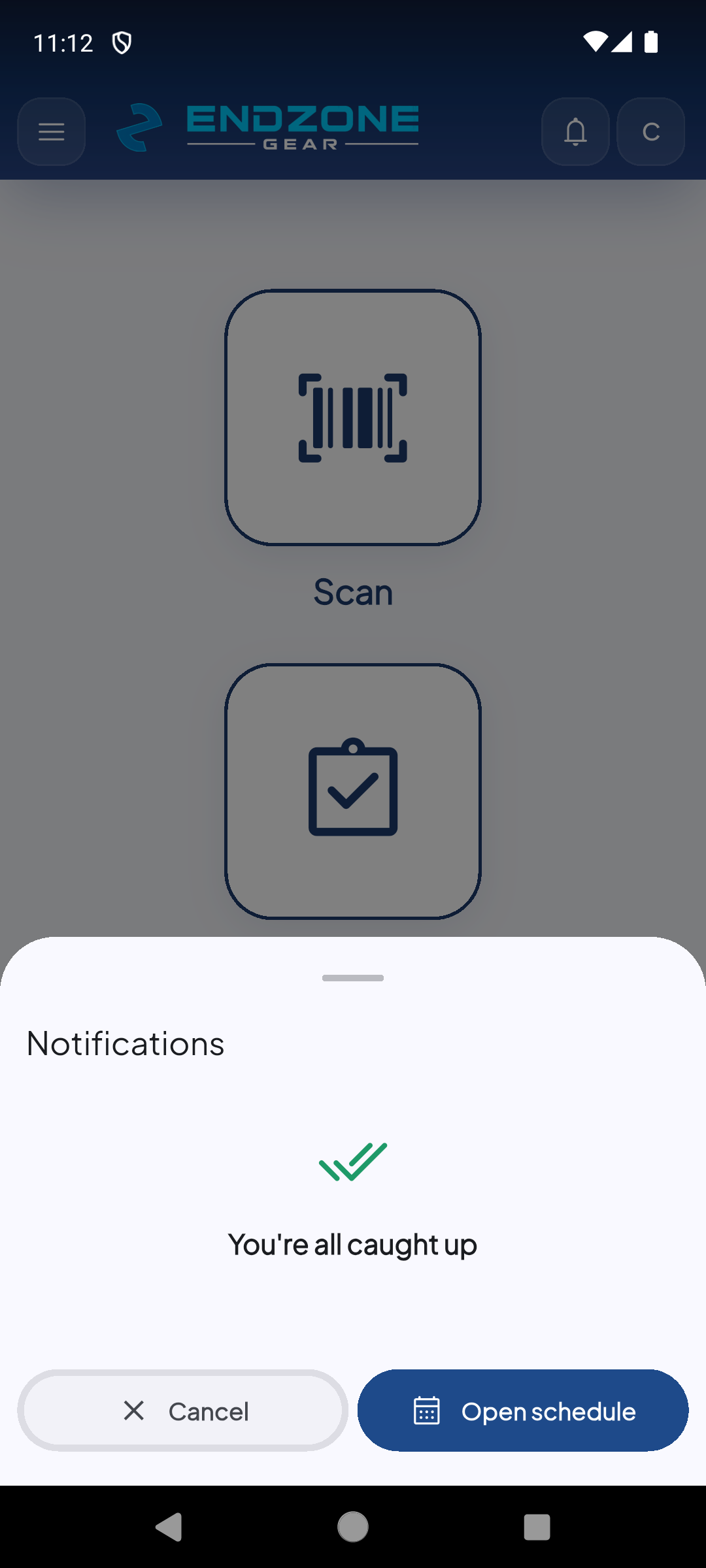
- A bottom sheet will slide up displaying your pending notifications.
- If there are no active notifications, you will see the “You’re all caught up” message with a checkmark icon.
Screen Elements
Section titled “Screen Elements”| Element | Description |
|---|---|
| “Notifications” header | Panel title identifying the notification section |
| Alert list | When pending notifications exist, they appear here with icon, description, and timestamp |
| “You’re all caught up” | Empty state message — no pending alerts |
| Cancel | Closes the notification panel and returns to the current screen |
| Open schedule | Quick shortcut to the Schedule module to review related scheduled tasks |
Notification Types
Section titled “Notification Types”EndZone Gear can generate notifications for the following events:
- Scheduled Tasks: Reminders for upcoming preventive maintenance tasks nearing their due date.
- Asset Assignments: Alerts when an asset has been assigned or reassigned to your operational zone.
- Status Updates: State changes on assets you are monitoring.
- System Alerts: Connectivity notifications, app updates, or administrator-broadcast messages.