



Profile and Settings
User Profile & Settings
The Settings screen centralizes active user information, interface language preferences, guided tutorial access, and secure session management.
Interactive Settings Demo
Section titled “Interactive Settings Demo”Explore the settings overview and the language selector dialog:
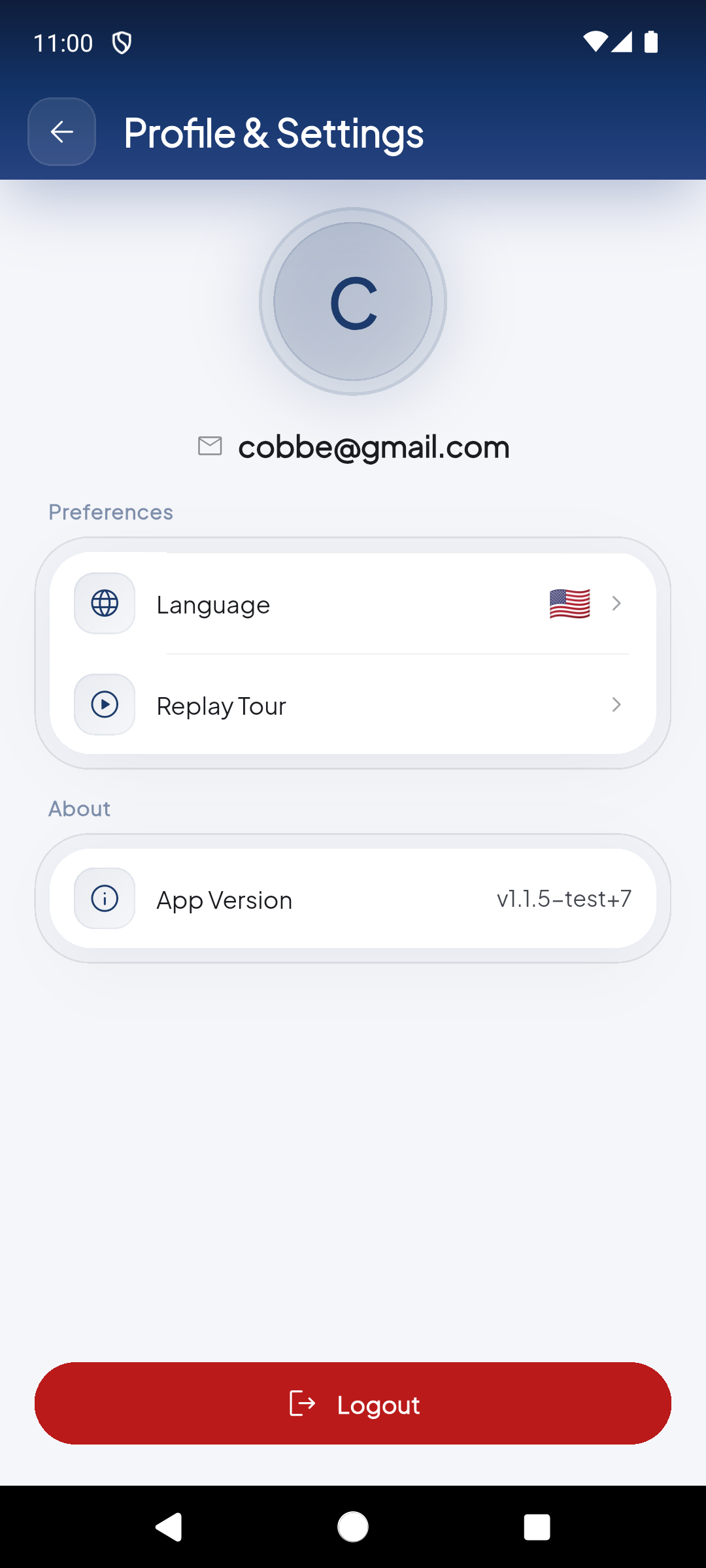
View your email ('cobbe@gmail.com'), active facility ('Control Activos'), 'Language' picker, 'Replay Tour' button, installed app version ('v1.1.5-test+7'), and 'Sign Out' button.
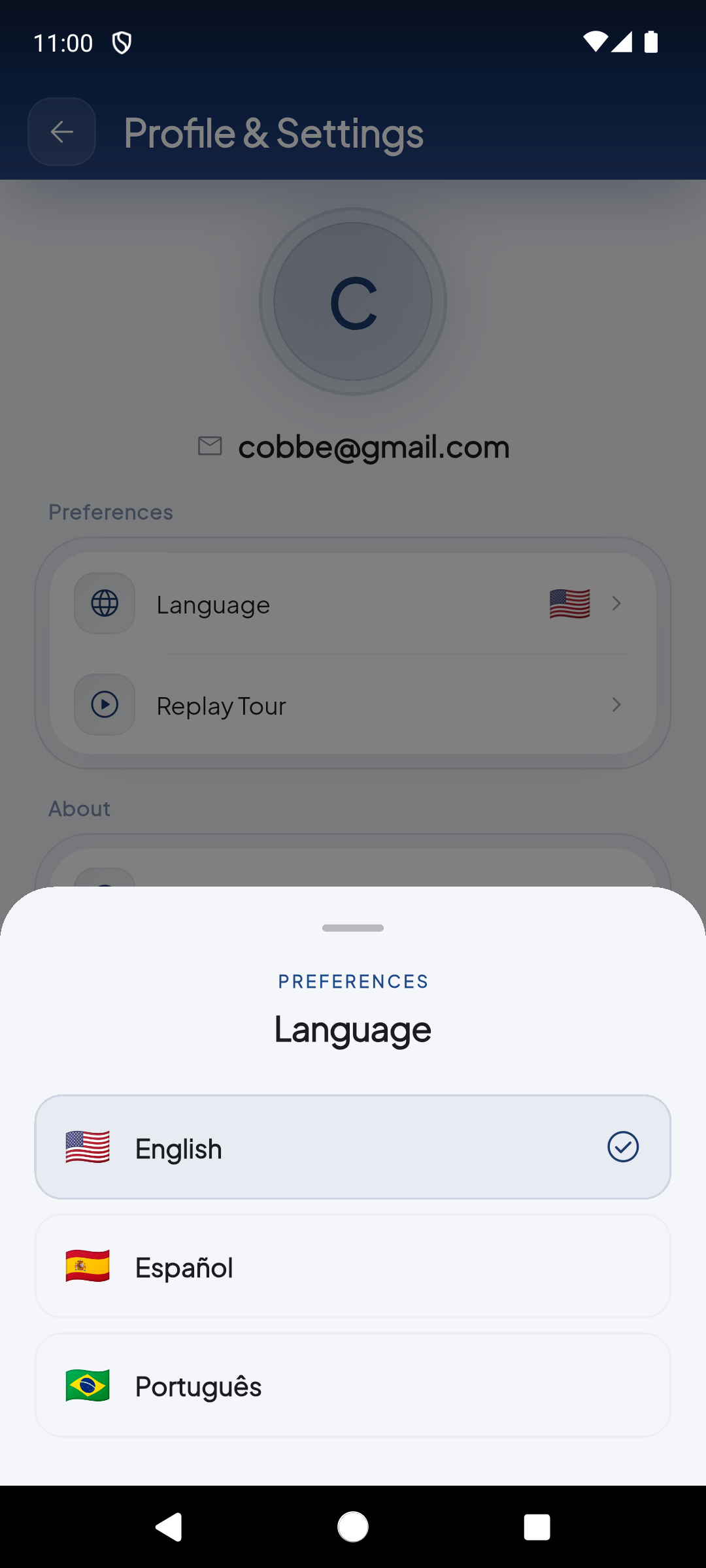
Tapping 'Language' brings up the language selection dialog to toggle the entire app between English, Español, or Português immediately without restarting.
Demo completed!
Available Options
Section titled “Available Options”1. Operator Details
Section titled “1. Operator Details”At the top of the screen:
- Circular Avatar: Initial of the authenticated user.
- Email Address: Active account authenticated via Keycloak SSO (e.g.,
cobbe@gmail.com). - Active Facility: Name of the warehouse or distribution center currently selected (
Control Activos).
2. Language Selection
Section titled “2. Language Selection”EndZone Gear features built-in internationalization:
- English (Default)
- Español (Spanish)
- Português (Portuguese)
Selecting an option instantly updates all buttons, navigation headers, scanner messages, and modal labels without clearing your active workspace.
3. Replay Tour
Section titled “3. Replay Tour”Tapping this button restarts the 6-step guided walkthrough detailed in the Onboarding Tour guide. This is ideal for training new warehouse staff or reviewing operational standards.
4. Application Version
Section titled “4. Application Version”Displays the current build identifier (e.g., v1.1.5-test+7). Provide this version number when communicating with IT support or filing bug tickets.
5. Secure Sign Out
Section titled “5. Secure Sign Out”Tapping the red Sign Out button at the bottom:
- Securely purges cached access tokens from the local device storage.
- Clears active facility session state.
- Returns the application to the welcome screen for the next user.