



Move — Moving Packages
Move — Moving Packages
The Move module is the central hub for all transfer operations in EndZone Point. It covers three different workflows:
| Workflow | Description |
|---|---|
| Move within the same facility | Consolidate packages between slots or LPNs inside your current warehouse |
| Switch facility | Use the top-left selector button to switch warehouses and move packages between facilities |
| Move SKU between shelves | Relocate an inventory SKU from one shelf to another within the same facility |
Path: Home → Move
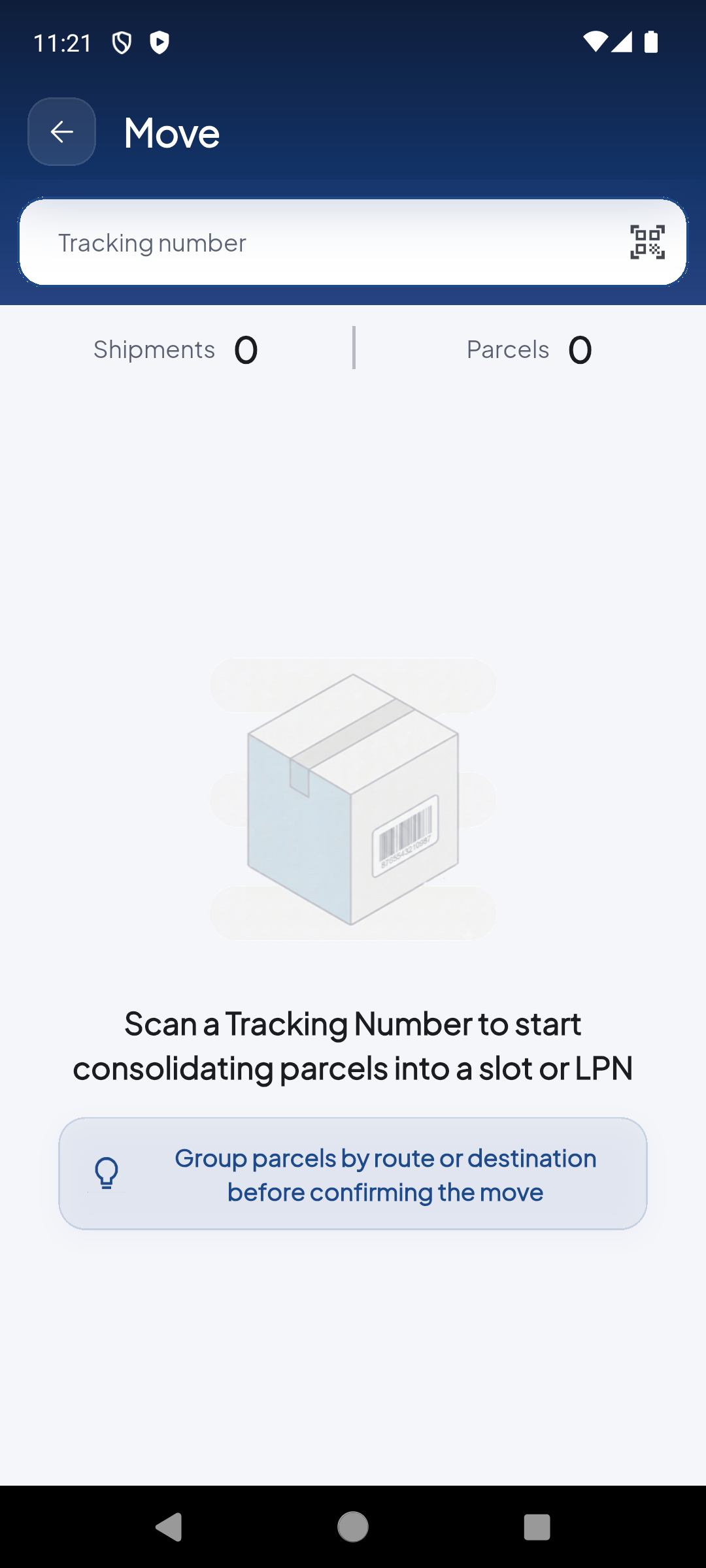
'Tracking number' field to scan or type the package code. Camera icon activates the scanner. Shipments and Parcels counters start at 0.
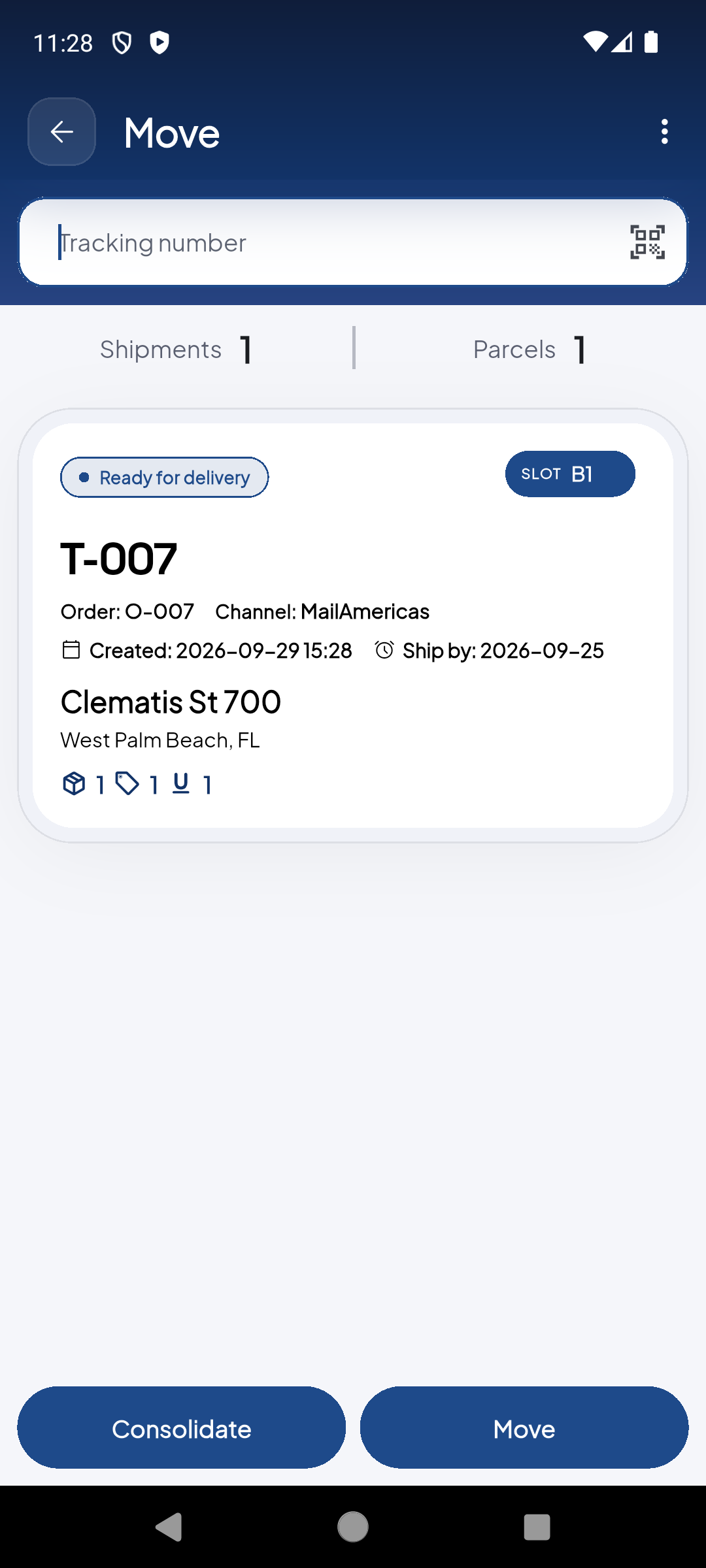
After scanning, the package appears as a card with Tracking, Order, Channel, dates and address. Shipments and Parcels counters update in real time. 'Consolidate' and 'Move' buttons appear at the bottom.
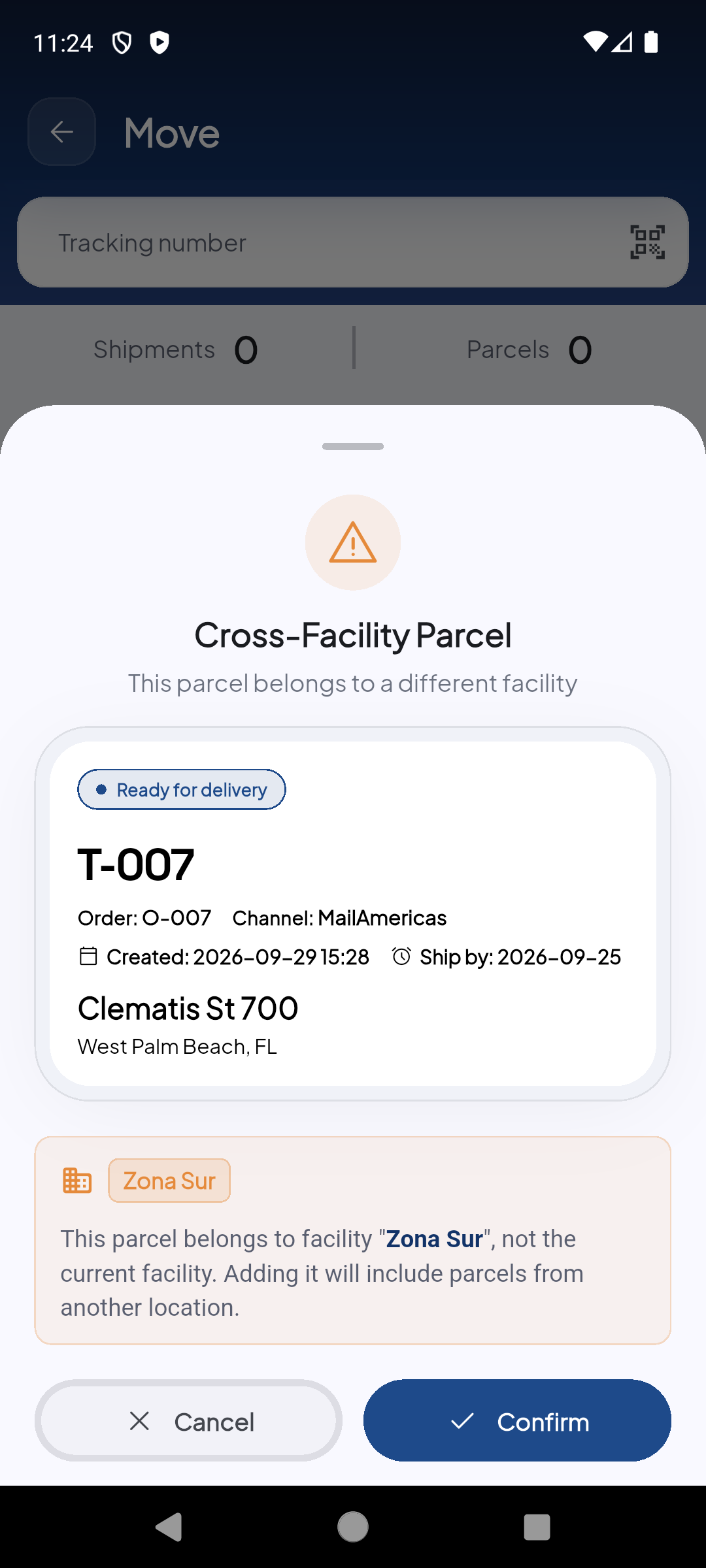
If the package belongs to a different facility (e.g. 'Zona Sur'), the app shows a 'Cross-Facility Parcel' warning with the package details. You can Cancel or Confirm to add it anyway.
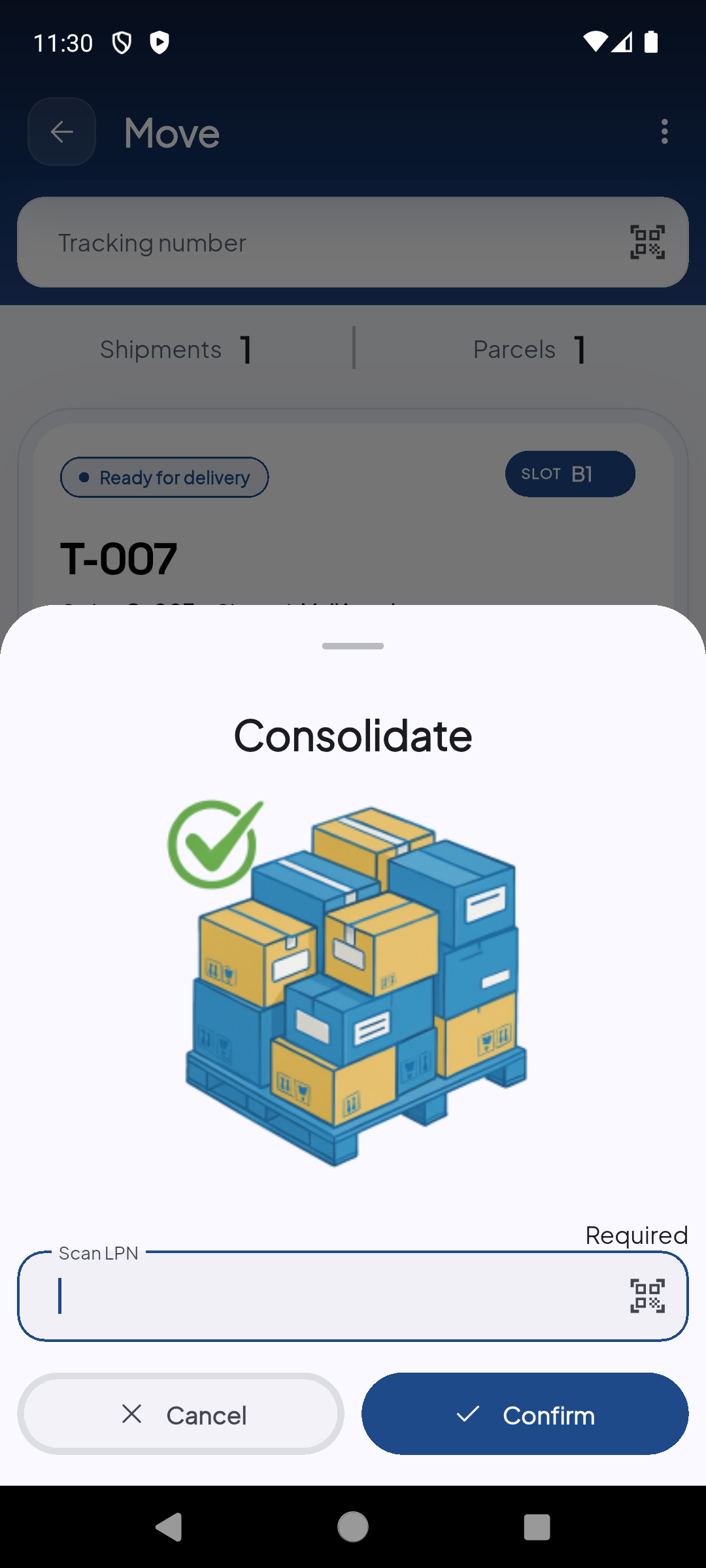
Tapping 'Consolidate' opens a modal to scan the destination LPN where packages will be grouped. Tap 'Confirm' to complete the consolidation.
Demo completed!
Step-by-step flow
Section titled “Step-by-step flow”- Tap Move from the main menu → You’ll see the empty scan field with counters at 0
- Scan the Tracking Number of each package with the camera or type it manually
- Check the counters — Shipments and Parcels update in real time
- Repeat for each package in the batch you want to move together
- Confirm the movement → Packages are consolidated in the destination slot/LPN
Screen elements
Section titled “Screen elements”| Element | Description |
|---|---|
| Tracking number | Main field — scan or enter the package code |
| Camera icon | Activates the camera scanner to read barcodes/QR codes |
| Shipments | Counter of unique shipments grouped in this batch |
| Parcels | Total count of individual packages scanned |
Facility Selector
Section titled “Facility Selector”The button in the upper left corner of the Move screen shows the currently active facility. Tapping it displays a list of all facilities you have access to.
| Action | Description |
|---|---|
| View current facility | Your active warehouse name appears next to the icon in the upper left corner |
| Switch facility | Tap the button → select another facility from the list |
| Move between facilities | Once a new facility is selected, any packages you scan will be registered as moved to that warehouse |
Switching facilities affects all operations in the current Move session. Always verify the correct facility is selected before scanning packages.
Move SKU Between Shelves
Section titled “Move SKU Between Shelves”Within the same facility, Move also allows you to relocate a SKU from one shelf to another:
- Select the correct facility using the top-left button
- Scan the SKU you want to relocate
- Scan the destination shelf (bin or target location)
- Confirm the movement — the system updates the SKU’s location in inventory
| Element | Description |
|---|---|
| SKU | Code of the item or product you want to relocate |
| Origin shelf | Current SKU location (detected automatically when scanned) |
| Destination shelf | Bin or location where the SKU will be moved |
Common use cases
Section titled “Common use cases”| Use case | Workflow |
|---|---|
| Route organization | Same facility — group all packages going to the same area |
| Vehicle loading | Same facility — consolidate shift packages before heading out |
| Slot transfer | Same facility — move packages from a temporary to a permanent slot |
| Customer Pickup prep | Same facility — group packages ready for pickup in a designated area |
| Inter-warehouse transfer | Another facility — use the top-left selector to move packages to another warehouse |
| Inventory relocation | Same facility — move a SKU from one shelf to another to optimize layout |