



Customer Pickup
Customer Pickup
The Customer Pickup module processes package delivery when a customer arrives at the warehouse to collect their parcel. Supports Tracking Number, Order ID search or optical recognition (OCR).
Path: Home → Customer Pickup
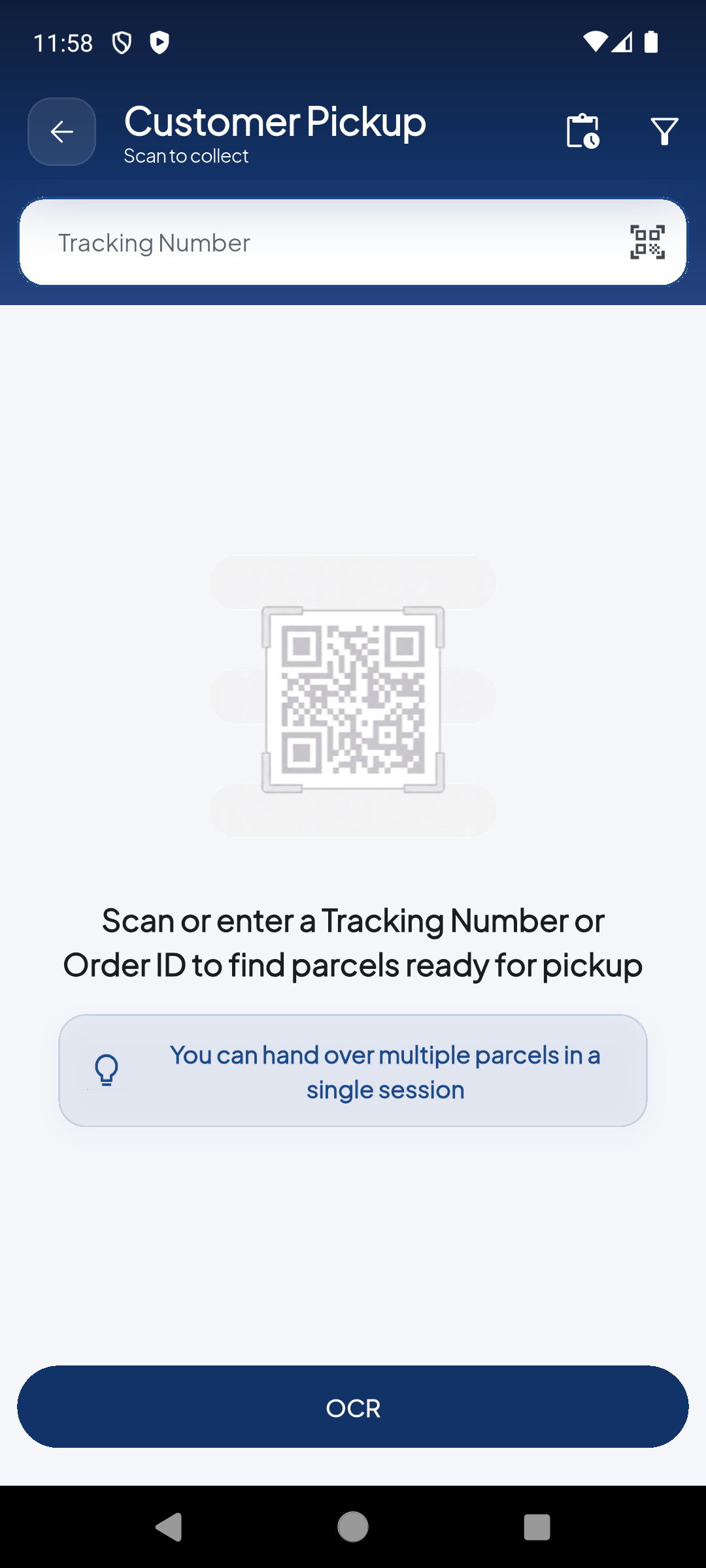
'Tracking Number' field to scan or type the package code. QR scanner icon on the right side. Tip: 'You can hand over multiple parcels in a single session'.
The 'OCR' button at the bottom of the screen activates the camera to read customer documents: invoices, printed confirmations, package labels.
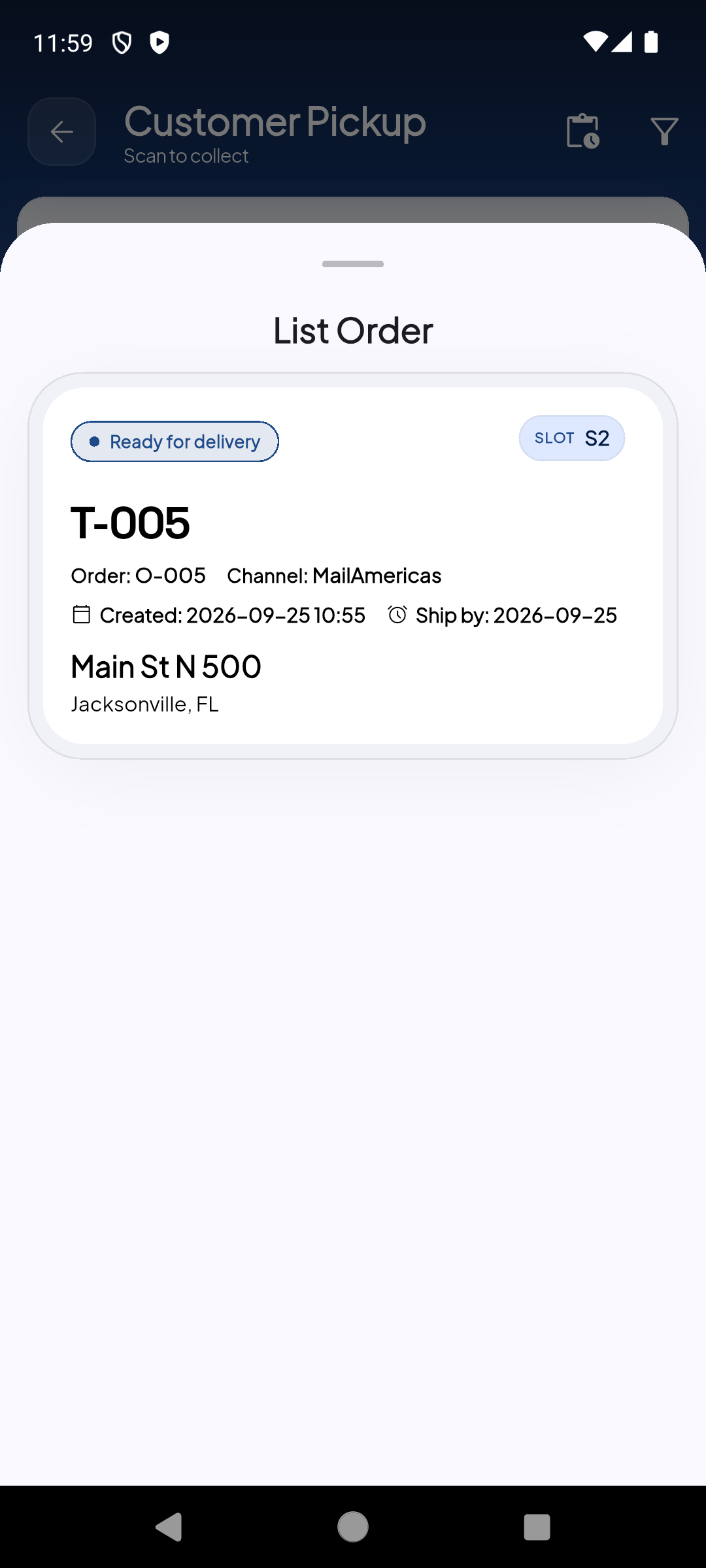
After entering a valid tracking, the system shows the 'List Order' modal with the package card: status, slot, tracking, order, channel, dates and address. Verify before handing over.
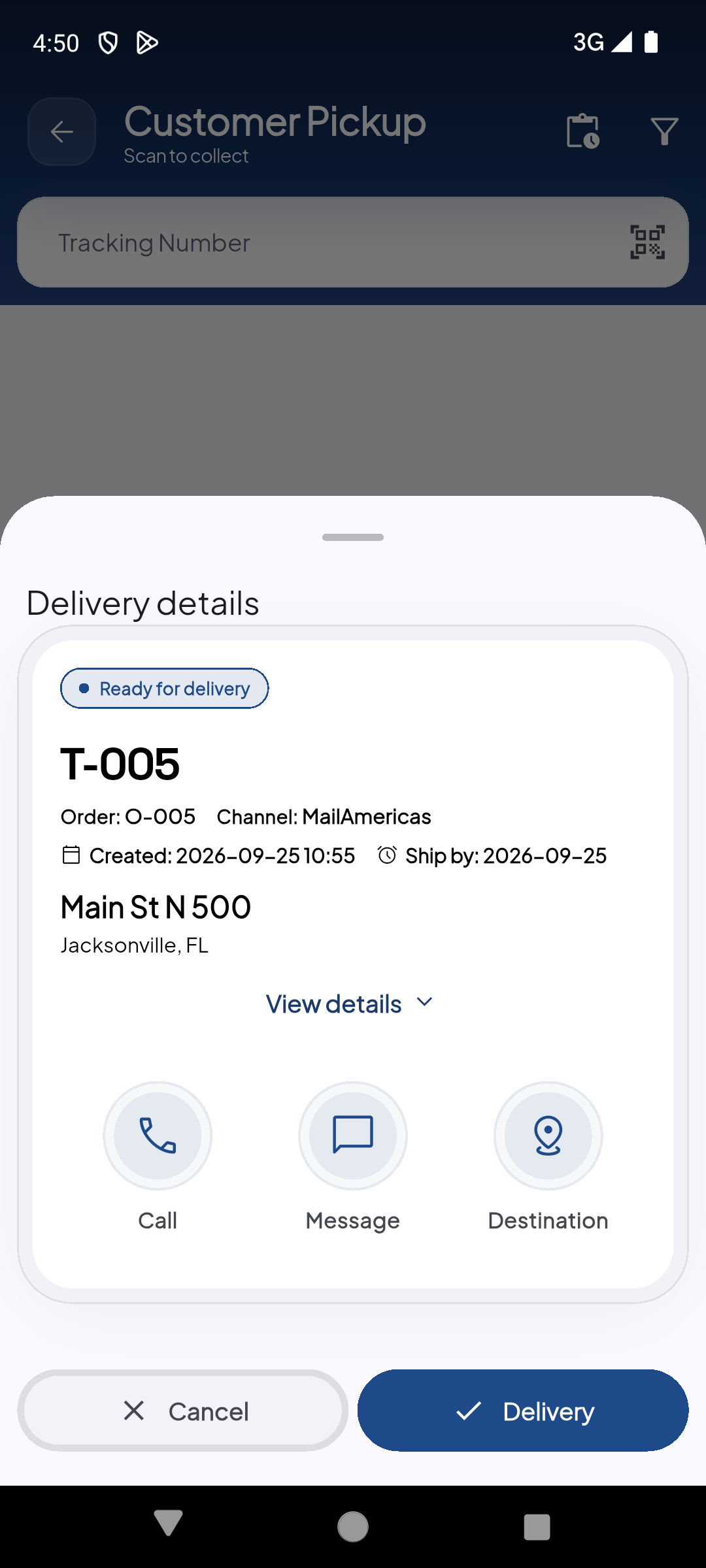
The 'Delivery details' modal shows the full package info: status, tracking, order, address and actions (Call, Message, Destination). Tap the blue 'Delivery' button to complete the pickup.
Demo completed!
Search methods
Section titled “Search methods”| Method | Description |
|---|---|
| Tracking Number | Scan the barcode or type the package tracking number |
| Order ID | Enter the order ID if the customer doesn’t have the tracking number |
| OCR | Use the OCR button to let the camera read the customer’s printed documents |
Complete pickup flow
Section titled “Complete pickup flow”- Tap Customer Pickup from the main menu
- Find the package — Scan the tracking, enter the Order ID, or use OCR
- Verify the information — The system shows the recipient’s name and found packages
- Add additional packages — If the customer is picking up multiple parcels, repeat step 2
- Confirm the pickup — Tap the confirm button to register the delivery
Before confirming, verify the customer’s identity according to your operation’s policies. Once confirmed, the package is recorded as delivered and cannot be easily reversed.
OCR Button
Section titled “OCR Button”The OCR (Optical Character Recognition) allows scanning physical customer documents:
| Supported document | Example |
|---|---|
| Printed order confirmation | Email with the order code |
| Invoice | Document with visible tracking number |
| Package label | The shipment label itself |
By pointing the camera at the document, the system automatically extracts the tracking code without the need to type it manually.
Package statuses
Section titled “Package statuses”| Status | Description |
|---|---|
| Ready for pickup | Package is at the warehouse waiting for the customer |
| Customer Pickup | Pickup confirmed — package delivered to the customer |
| Not found | The tracking doesn’t exist or the package isn’t available for pickup |